Every AI is its own island
What you tell ChatGPT, Claude never hears. Each assistant keeps its own history and its own memory, and none of them share.
Save notes, links and reminders with a connected assistant—or add them yourself. Find them again when you need them.
On iPhone or iPad, tap Share in Safari, then Add to Home Screen. Cardle opens from your home screen like any other app.
The problem
Most of us now work across several AI assistants and a handful of apps. Each one holds a piece of what you meant to do, and there's no single place to see it all or pick it back up.
What you tell ChatGPT, Claude never hears. Each assistant keeps its own history and its own memory, and none of them share.
“Remind me Friday.” “Read this later.” The thing you just learned. Said once in a chat, then buried under the next conversation.
Reminders in one app, bookmarks in another, issues in GitHub. Seeing everything means opening everything, so most of it waits unseen.
Cardle is the one place they all write to. Save from any assistant or by hand, bring in sources like GitHub, review everything in one feed, and pick it up again from whichever AI you're in.
The real product
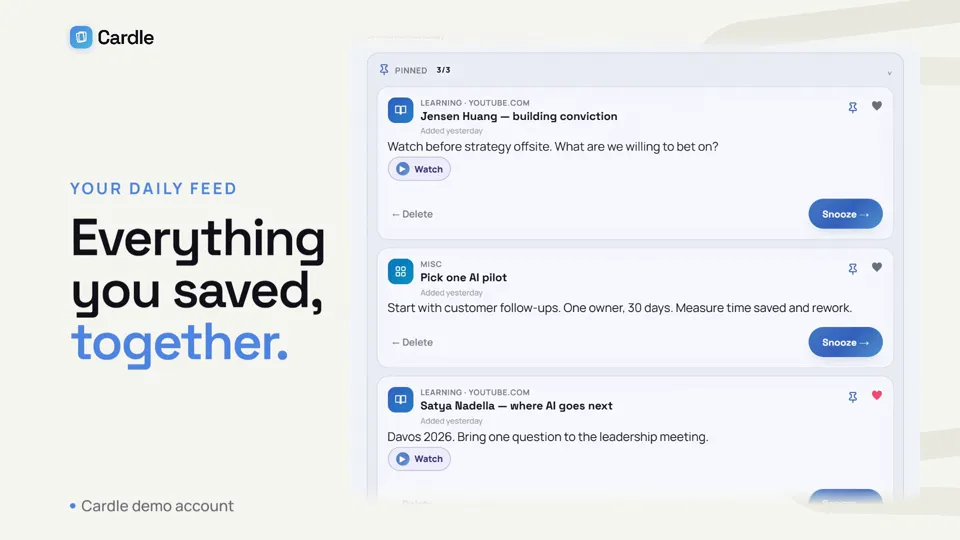
Try the actual Cardle feed. Favorite, snooze, or clear a card; nothing you do in this demo is saved.
This is the real feed. Play freely—nothing you do in the demo is saved.
Make it yours ↗Capture once. Meet it again.
Add it yourself, ask a connected assistant, bring in another source, or request fresh picks.
Reminders, work, learnings, bookmarks, and issues share one feed.
The daily feed brings pending things back before they quietly disappear.
Your streak rewards showing up, not reaching an impossible inbox zero.
Use the interface you already have
Save a link in Claude. Find it again in ChatGPT. Open it in Cardle. Watch the same saved item move across all three, then connect your assistants to your own shared feed.
One real example, from a conversation to your daily feed.
Three ways in
Start with the web app, work through an AI assistant, or build your own on Cardle's API.
Capture and review directly in the web app. Cardle is the interface; you decide what happens next.
Use Claude, ChatGPT, or Gemini as the interface to capture, retrieve, organise, or act on your cards.
Connect Cardle to your own data and workflows. You define what enters the feed and what happens next.
Meet Cardle
Cardle is a personal knowledge and reminder app that brings notes, learnings, bookmarks and work follow-ups into one daily feed. Save items in the web app or through an AI assistant connected over MCP, then review, snooze, pin or favorite them in Cardle.
It's for people whose useful information is scattered across conversations and apps. You choose what to save; connecting an assistant does not automatically import your entire chat history.
See how to save and revisit your first item ↗Before you start
Yes. Sign in with Google and add and review your cards directly in the web app. Connecting an AI assistant is optional. You can also try the sample feed without signing in; demo changes are not saved.
Yes, when both assistants are connected to the same Cardle account. Ask one connected assistant to save a note or reminder, then ask another to retrieve it from Cardle. This shares the items you save, not the assistants' full conversation histories. See the MCP connection guide.
No. An assistant connection lets you ask that assistant to read and manage your Cardle cards. It does not give Cardle automatic access to your past chats. Save the useful information you want to keep, or configure a supported source such as GitHub Issues.
A bookmark keeps a link. Cardle puts bookmarks alongside reminders, learnings and work follow-ups in a daily review feed. You can snooze a card for later, pin it or mark it as a favorite to help you revisit it.
The personal web app is currently free and uses Google sign-in. You must be 18 or older. If account capacity is reached, new users join an access waitlist. Your AI provider may have separate plan or connector requirements. Start with the web app.
Each Cardle account has its own data. An AI assistant can access your cards only after you connect it. When you ask it to read or change cards, the relevant content passes through that assistant's provider under its own terms. Read how assistant access works and the service provider details.